

Consent Update
Consent Signal
You have an option to enable Consent Signal, which will allow passing of consent status to CJ's tag.
Google Consent Mode (RECOMMENDED)
In case you are using Google Consent Mode compliant consent management platform (CMP), you can select Google Consent Mode option and CJ's tag will automatically read consent status. This is the easiest way to enable Consent Signal, as it does not require any additional configuration.
You can refer to a full list of Google's CMP partners, with Google Consent More integrated, at cmppartnerprogram.withgoogle.com. If you are using one of these (e.g. OneTrust, Cookiebot, CookieYes, etc.), there is a good change that you will be able to use the Google Consent Mode option.
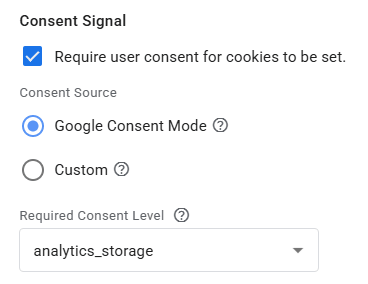
You do not need to make any other changes to your tags or triggers, as CJ's tag will automatically read the consent status from Google Consent Mode, waiting for any consent updates and behaving accordingly.
Other CMP or Custom Consent Dialog
If non-compliant CMP or custom consent dialog is used, you will need to select "Custom" option and make the consent status available via a variable (values: 1 for consent given, 0 for consent not given). In such a scenario, you will need to trigger the tag with Page Data data type again, on the consent status update event.
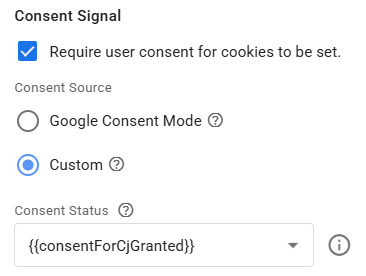
In the end you should have 1 tag of Order Data type, 1 tag of Page Data type triggered on all DOM Ready Events (except for Conversion Confirmation page), and 1 tag of Page Data type triggered on consent status update event.
Tag's Consent Settings
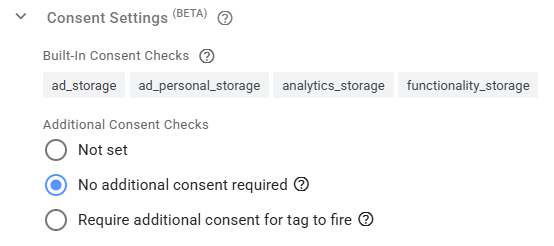
Once you choose to use Consent Signal and have it enabled and configured on CJ's tags, so the available consent status is being properly passed to the tags, enabling them to reflect the current consent status, you will need to update the tag's consent settings to ensure that the tags will fire without additional restrictions.
Testing Consent Signal
Following enabling Consent Signal and finalizing the settings, please make sure to test the implementation in Preview mode, to ensure compliant behavior before publishing the changes.
Updated 2 months ago