

Registering Your Feed
To register a new product feed, navigate within your CJ account to Campaigns > Ad Assets> Product Feeds. If this is your first product feed, you will see an introduction page. If you have already registered other feeds, you'll see them here. Click Register Feed to access the feed registration form. Complete all fields and click Register Feed to be taken back to the Feeds page.
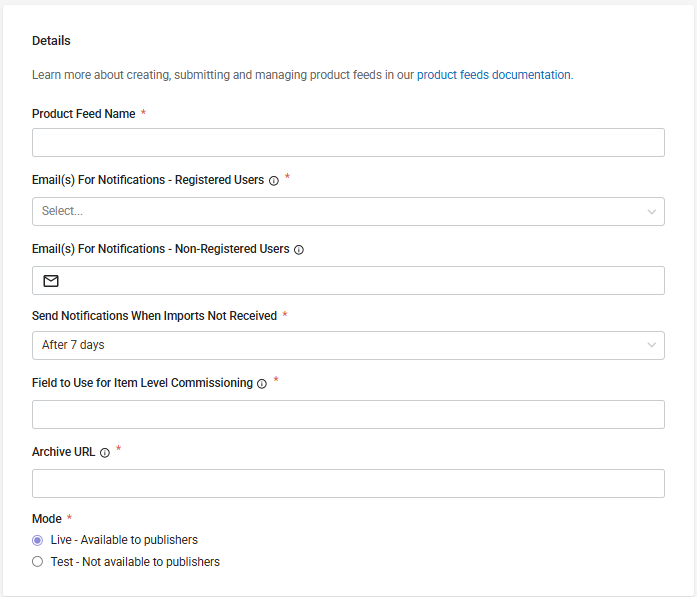
Details
Click any row to see type, format, and value examples.
Parameter
Description
Required
Product Feed NameName of your product feed link. Visible to publishers when they subscribe to a product feed export.
Required
Note: Not editable after the feed is created. Choose a name that clearly identifies the catalog.
Email(s) For Notifications – Registered UsersEmail addresses for registered users who will receive both import notification emails and (if applicable) CJ SFTP credentials. Select available user addresses from the drop-down menu.
Required
Email(s) For Notifications – Non-registered UsersEmail addresses for users not registered on the account who will receive only import notification emails. Include your CJ team, or anyone from your third-party feed vendor who needs import information. Separate multiple addresses with commas.
Optional
Send Notifications When Imports Not ReceivedReceive a reminder email after going a set number of days without submitting a product feed. All email addresses on the feed registration will receive these notices.
Optional
Archive URLThe URL where users are directed if they click a product link from this feed after it has been archived.
Required
Note: Must start with http:// or https://. Not editable after the feed is created.
ModeFeeds in 'live' mode generate import results notifications, save to the CJ search index, and display to publishers. Feeds in 'test' mode generate import results emails but are not saved in your account or displayed to publishers.
Required
Allowed Values
live
test
Note: We recommend submitting your feed in test mode to identify and correct errors before switching to live mode.
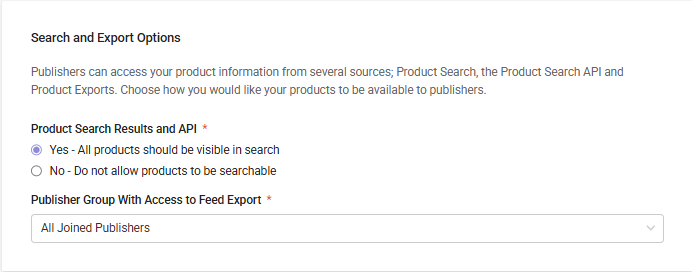
Search and Export Options
Click any row to see type, format, and value examples.
Parameter
Description
Required
Product Search Results and APISelect 'Yes' to make your products available to publishers searching in CJ Account Manager or the Product Search API. Select 'No' to make products unsearchable. Joined publishers can still export your full feed regardless of this setting.
Required
Allowed Values
Yes
No
Note: Not editable after the feed is created. Selecting 'Yes' makes products visible to both joined and non-joined publishers. Many publishers use product search to discover new advertisers, so 'Yes' is strongly recommended.
Publisher Group with Access to Feed ExportsRestrict which publishers can export your feed. Only joined publishers can subscribe to and export your full product feed.
Optional
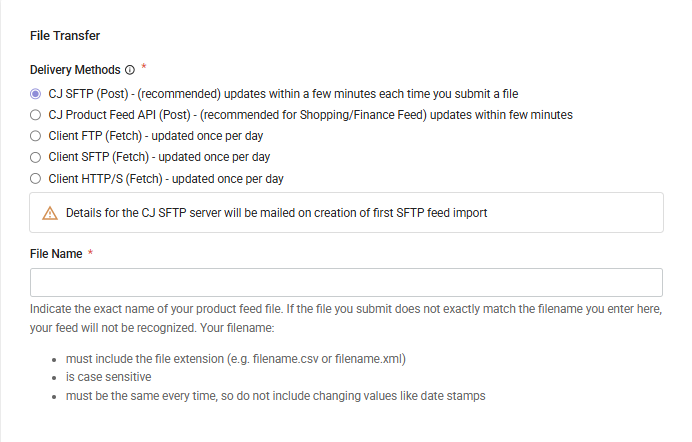
File Transfer
Click any row to see type, format, and value examples.
Parameter
Description
Required
Delivery MethodThe method you will use to send your feed to CJ.
Required
Allowed Values
POST to CJ SFTP
Fetch from your FTP
Fetch from your SFTP
Fetch from HTTP/S
Note: See 'Transferring Your Feed' for details on each method.
File NameThe exact name of the file you will submit. CJ uses your file name to identify which incoming file belongs to your account.
Required
Note: Must include the file extension (e.g. filename.csv or filename.xml). Case sensitive. Must remain consistent — do not include changing values like timestamps.
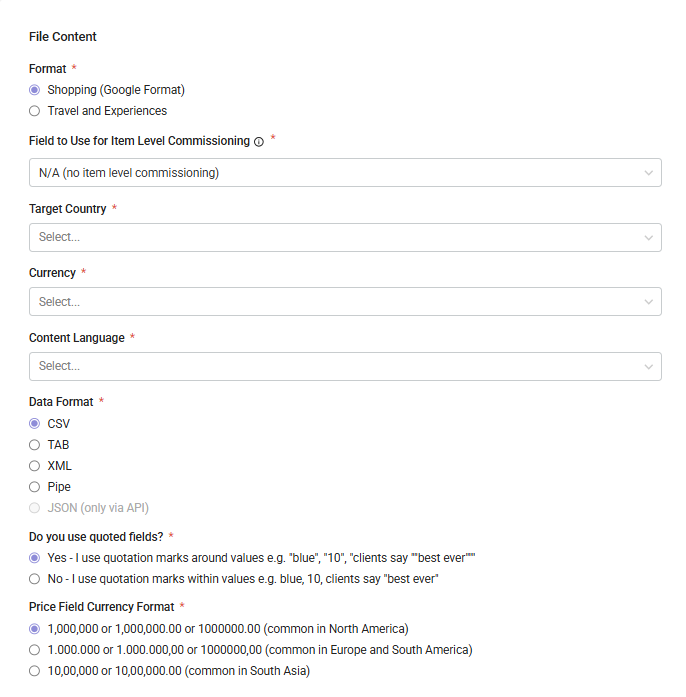
File Content
Click any row to see type, format, and value examples.
Parameter
Description
Required
FormatThe format of the feed you will be submitting.
Required
Allowed Values
Shopping (Google Format)
CJ Travel and Experiences
Finance
Note: Not editable after the feed is created. See 'Choosing the Right Feed Spec' below.
Field to Use for Item Level CommissioningIdentifies which column to use to populate product lists for item level commissioning. Only use this field if you already have product lists established in your account.
Optional
Target CountryThe primary country where your products are available for sale or to be shipped to.
Required
Note: Not editable after the feed is created.
CurrencyThe currency that the prices in your feed are displayed in.
Required
Examples
USD
EUR
GBP
Note: Not editable after the feed is created.
Content LanguageThe language that the content of your file is presented in.
Required
Note: Not editable after the feed is created. See the 'Languages' section in Errors & Troubleshooting for supported values.
Data FormatThe format you will use to send your product feed.
Required
Allowed Values
CSV
Pipe delimited
Tab delimited
XML
Quoted Values (delimited files only)Selecting 'Yes' treats all quotation marks as field enclosures — separating values or columns. Selecting 'No' treats quotation marks as literal characters in field content.
Optional
Note: Only select 'No' if you use quotation marks only in field content, never to separate values. If you use quotes in content AND to separate values, select 'Yes.' Most files should select 'Yes.'
Price Field Currency FormatThe punctuation format used in price fields. Select the format that matches how you use commas and periods to separate thousands and decimals.
Required
Note: If you submit a price in a format other than the one you selected, pricing will be incorrect for publishers.
Updated 4 months ago
What’s Next
Did this page help you?