

Magento
- Have your CJ-specific IDs ready before you begin: Enterprise ID, Action ID, and Tag ID. These are provided by your CJ Client Integration Engineering (CIE) team.
- Ensure you have admin-level access to your Shopify store before starting.
- Your unique tracking script must be copied directly from the CJ Network App within your Shopify Admin — do not use example code from screenshots.
- CJ cannot provide legal guidance on privacy compliance. Consult your legal team for jurisdiction-specific requirements before configuring privacy settings.
Step 1: Access Magento Marketplace
Step 2: Download the Extension
Step 3: Create Directory Structure
Create the following folder structure in your Magento installation:
# Navigate to your Magento installation directory
cd /path/to/magento

# Create directory structure
mkdir -p app/code/CjPublicis/UniversalTag
Step 4: Extract and Install Files
<Magento_Installation_Folder>/app/code/CjPublicis/UniversalTagStep 5: Execute Installation Commands
Run these commands in your Magento root directory:
# Upgrade Magento setup
bin/magento setup:upgrade

# Clear cache
bin/magento cache:flush

# Restart your server
Step 6: Verify Installation
Configuration
Access Configuration Settings
- Log in to your Magento 2.x admin panel
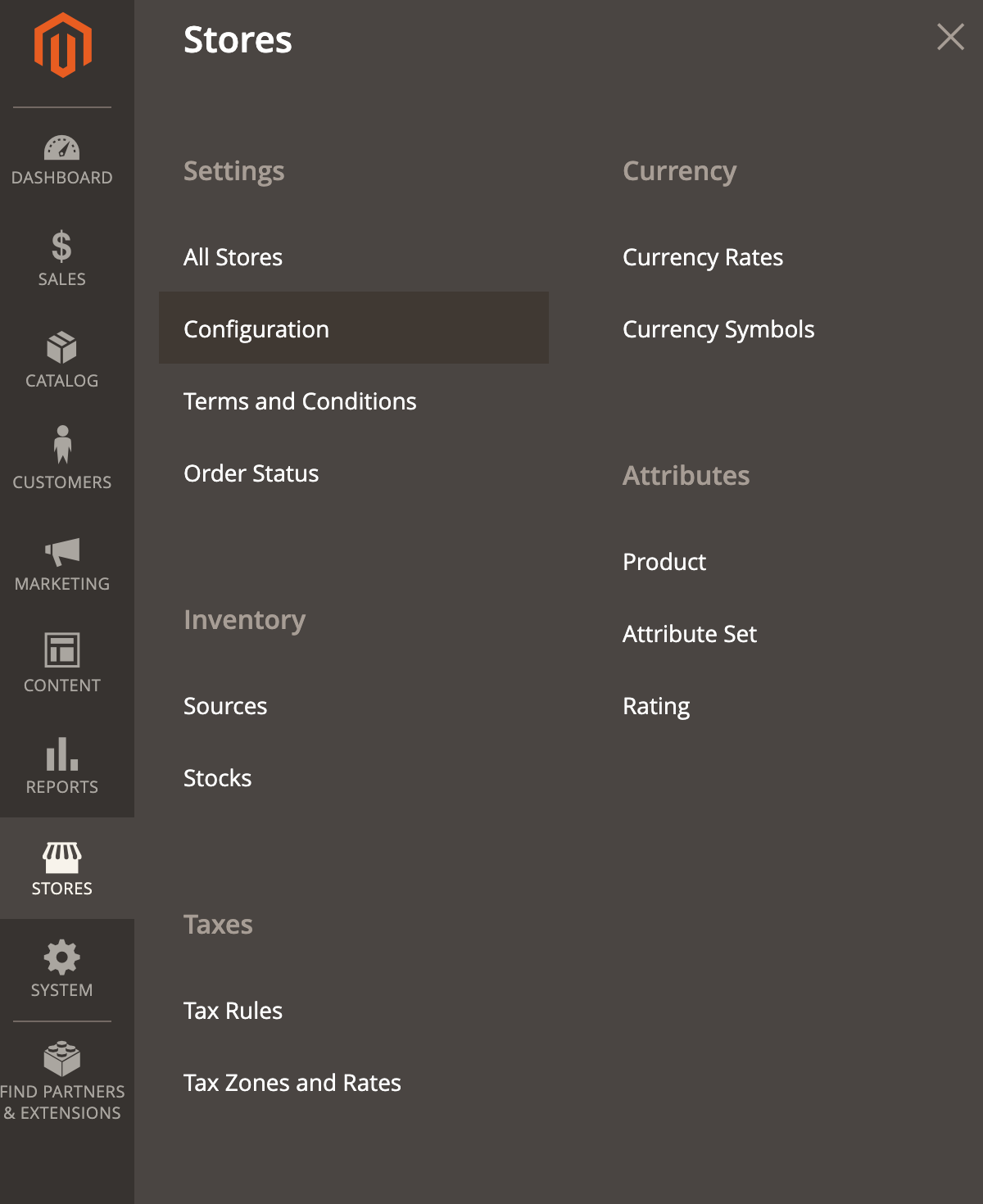
- Navigate to Stores → Configuration
- Locate and click CJ UNIVERSAL TAG in the settings list
Configure Tracking Parameters
Your CJ Client Integration Engineer will provide your account's Enterprise ID, Action ID, and Tag ID.
Never share your Enterprise ID, Action ID, or Tag ID publicly. These values are unique to your account and should be kept confidential.
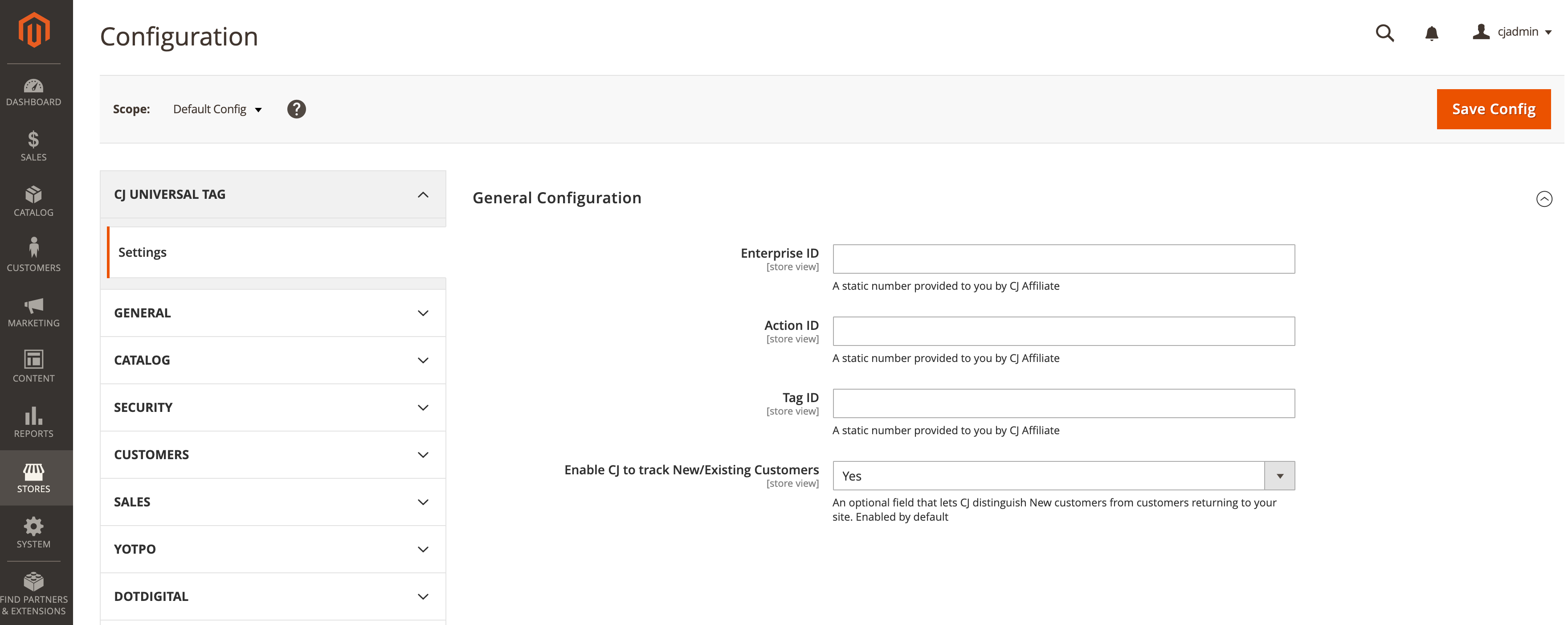
Customer Tracking Settings
Choose whether to track:
- New Customers: First-time purchasers
- Existing Customers: Returning customers
Note: Customer status is determined by the email address entered at checkout.
Save Configuration
- Enter the provided tracking parameters
- Select your customer tracking preferences
- Click Save Config at the top of the page
- Optionally configure specific website or store views by changing the Scope
Uninstalling The Extension
<StepList
color="#025450"
steps={[
{
n: "1",
body: <>
Remove Files — Delete the extension directory:
rm -rf <Magento_Installation_Folder>/app/code/CjPublicis</>
},
{
n: "2",
body: <>
Clean Database — Execute these SQL statements in your database:
{`DELETE FROM core_config_data WHERE path='universaltag/general/enterprise_id';
DELETE FROM core_config_data WHERE path='universaltag/general/action_id';
DELETE FROM core_config_data WHERE path='universaltag/general/tag_id';
DELETE FROM core_config_data WHERE path='universaltag/general/customer_status';`}
⚠️ Warning: Back up your database before executing SQL statements. These changes cannot be undone.
</>
},
{
n: "3",
body: <>
Finalize Removal — Run Magento's setup upgrade and restart your server:
{`bin/magento setup:upgrade\n# Restart your server`}</>
},
]}
/>
Need help?
Submit a support ticket for account-specific support.
Updated 4 months ago