

Implementation
Pre-requisites
📋Before You Implement
- Please ensure you have avaialble all CJ specific IDs required to proceed with implementation. Specifically, you will need the Company ID, Tag ID, and Action Tracker ID.
- Code examples are provided for reference only and may not be compatible with all shopping carts or platforms. CJ does not guarantee their accuracy for your specific setup.
- Integration IDs: All advertiser implementations require unique integration IDs. Request your IDs from CJ’s Technical Support team when you are ready to begin your setup.
- Tracking Continuity: Maintain your existing tracking until your new integration is fully implemented, tested, and confirmed as active. This ensures uninterrupted attribution and reporting.
Tag #1 - Custom HTML
1
Within the Tags tab, click New.
2
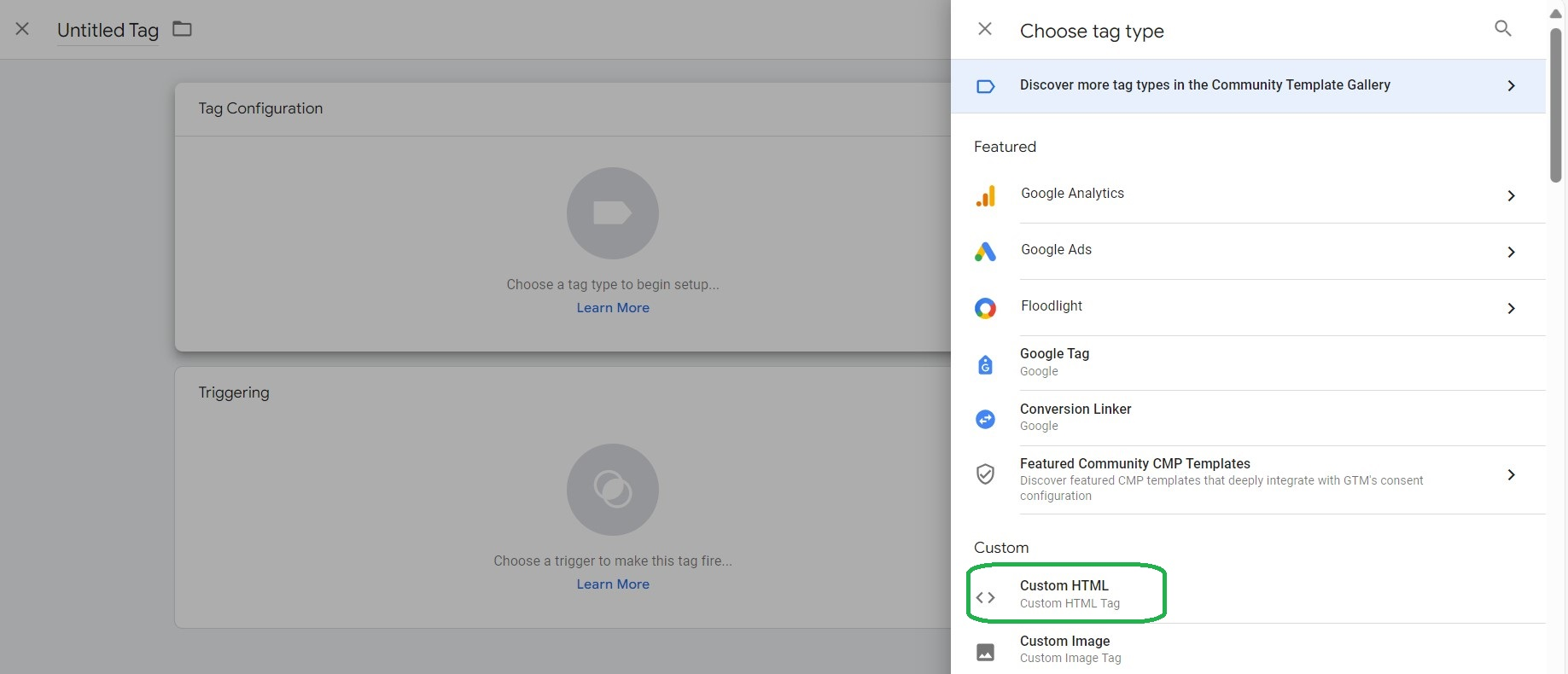
Under Tag Configuration, click the pencil icon and select Custom HTML Tag.
3
Paste the script tag below into the HTML field. If (tagId) is showing in the script, please ensure to replace with your account Tag ID.
<!-- BEGIN CJ TRACKING CODE -->
<script type='text/javascript'>
(function(a,b,c,d){
a='https://www.mczbf.com/tags/{tagId}/tag.js';
b=document;c='script';d=b.createElement(c);d.src=a;
d.type='text/java'+c;d.async=true;
d.id='cjapitag';
a=b.getElementsByTagName(c)[0];a.parentNode.insertBefore(d,a)
})();
</script>
<!-- END CJ TRACKING CODE -->
4
Do not add any triggers to this Custom HTML container. Click Save.
Tag #2 - Site Page Tag
This tag fires on all pages of your site except the order confirmation page. It sends page visit data to CJ's Customer Journey Tool.
1
Within the Tags tab, click New.
2
Click Tag Configuration.
3
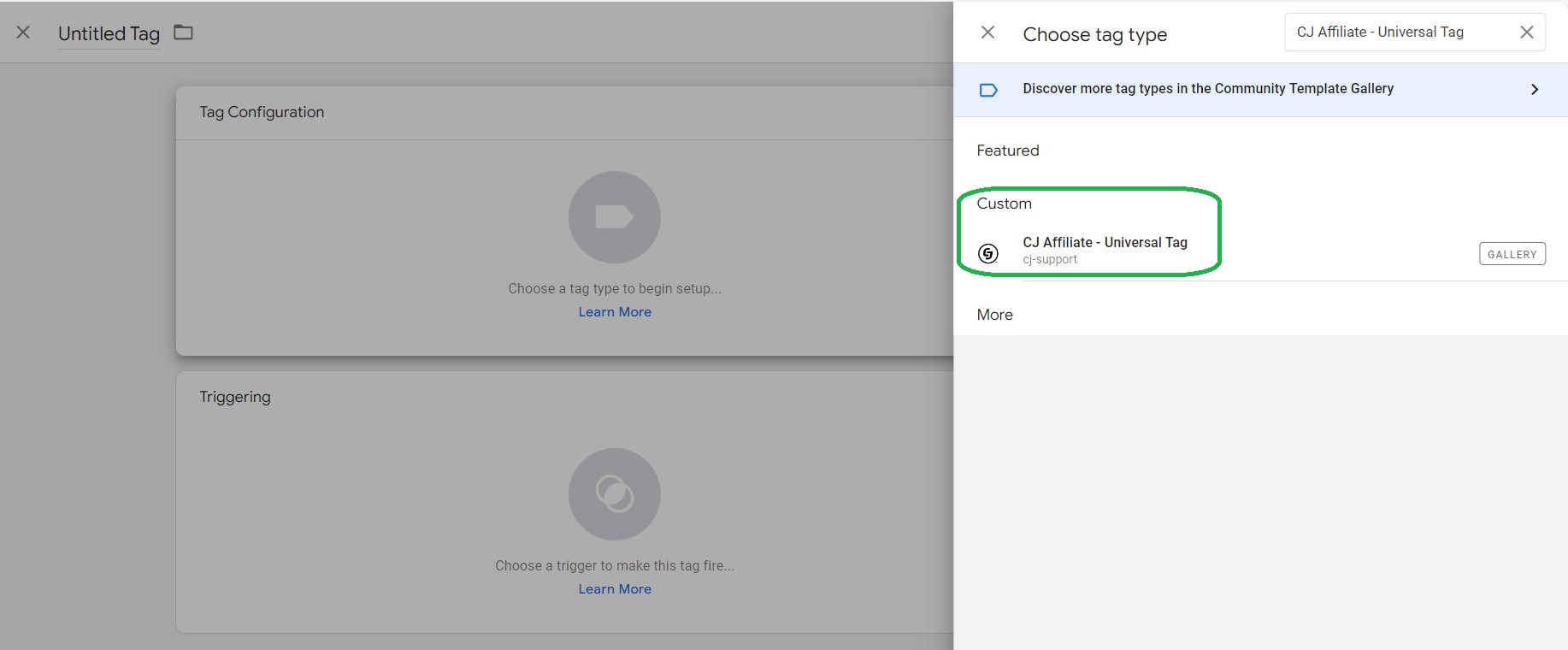
Select Discover more tag types in the Community Template Gallery.
4
Click the search icon and search for CJ Affiliate - Universal Tag.
5
Click on the tag template and select Add to workspace.
6
Under Data Type, enable the toggle for Page Data.
7
Map the Site Page Tag parameters to your own data layer variables. Please reference the below table for additional details.
Click any row to see type, format, and value examples.
Parameter
Description
Required
Page TypeIdentifies the type of page where the tag is firing. Must match one of the accepted values in the pageType table below.
Recommended
Type: String
Allowed Values
homepage
searchResults
productDetail
searchResults
Note: Mismatched values will skew funnel attribution reporting in CJ.
Company IDYour CJ Enterprise ID. A static value provided by CJ.
Required
Order SubtotalSubtotal of the shopping cart. Populate only on cart page types. Do not include taxes or shipping costs.
Optional
Type: Decimal
Note: Only send this value when pageType is cart. Exclude taxes, shipping, and discounts.
Referring ChannelThe marketing channel the user was referred by before arriving at your site. Populate only on the first landing page. Required for CJ Cross Channel Journey insights.
Recommended
Type: String
Allowed Values
Affiliate
Display
Social
Search
Email
Direct_Navigation
Note: Only populate on the first landing page of the session. Do not populate on subsequent page views.
Vertical:
All values are supported across verticals. The list below reflects the most common usage per vertical.
| Page Type | Advertiser Vertical | Notes |
|---|---|---|
homepage | Retail, Network Services, Finance, Travel | The main landing page and homepage of your site. |
department | Retail, Network Services, Finance | Department-level pages sitting above category pages in the site hierarchy. |
category | Retail, Network Services, Finance | Category listing pages showing a group of products or services. |
subCategory | Retail, Network Services, Finance | |
productDetail | Retail, Network Services, Finance | Individual product detail pages. |
cart | Retail, Network Services, Finance, Travel | Pass all items in the cart, if possible. Follow the format outlined in the Site Tag code example |
searchResults | Retail, Network Services, Finance, Travel | Search results pages. |
storeLocator | Retail, Network Services | |
accountSignup | Retail, Network Services, Finance, Travel | Account registration and signup pages. |
accountCenter | Retail, Network Services, Finance, Travel | Any pages within the account center after the user has logged in |
conversionConfirmation | Retail, Network Services, Finance, Travel | The conversion confirmation page. |
information | Travel | |
propertyResults | Travel | |
propertyDetail | Travel | |
applicationStart | Finance | The beginning of an application flow. |
branchLocator | Finance | Pages that help users find a physical branch location. |
8
Click on the Additional Tag Settings drop down.
9
Select Cross Journey Tracking and return a referringChannel parameter. The expected values for referringChannel are listed in the table above. Required for Cross Journey Tracking.
10
Click on the drop down for Advanced Settings to view additional options.
11
Click on the drop down for Tag Sequencing. Select the option "Fire a tag after [your current tag name] fires". Select the CJ Universal Tag Container tag (custom HTML) that contains the script.
12
Under Triggering, select a trigger that fires the tag on all pages except the confirmation page.
13
Click Add Exception.
14
Select the same trigger that will be used for the Conversion Tag. We do not want the Site Page tag to fire on the same event the Conversion Tag fires on.
15
Click Save.
Tag #3 - Conversion Tag
This tag fires only on the order confirmation page and reports completed transactions to CJ. It uses the same CJ Universal Tag Template as Site Page Tag, but with Order Data enabled instead of Page Data.
1
Within the Tags tab, click New.
2
Click Tag Configuration.
3
Select CJ Affiliate - Universal Tag in the Custom section.
4
Under Data Type, enable the toggle for Order Data.
5
Enter your account-specific fields and order parameters. Contact your CJ team member if you do not have these values.
Click any row to see type, format, and value examples.
Parameter
Description
Required
Company IDSet to your CJ Enterprise ID. This is a static value provided by CJ.
Required
Action Tracker IDA static value provided by CJ. Each action will have a unique actionTrackerId value.
Required
CurrencyIdentifies the currency used for the order amount. If no value is provided, product prices default to your functional currency. If the field is defined but contains no value, a transaction error will occur.
Recommended
Type: ISO Currency Code
Examples
USD
EUR
GBP
Note: You can enter a static currency code or use a dynamic variable that captures the correct value from your site. For a full list of supported currencies visit the CJ Support Center.
Order SubtotalSubtotal of the shopping cart. This should only be populated when the user is on a shopping cart page. It should not include taxes or shipping costs.
Recommended
Type: Decimal
Examples
100
1409
Note: Recommended to return the subtotal pre-tax and shipping.
CouponThe coupon or voucher code used in the transaction.
Recommended
Type: String
Examples
SAVE20
WELCOME10
Note: Pass an empty string if no coupon was applied. Omitting this field entirely may cause attribution issues for coupon-based publishers.
Order IDA unique identifier such as an order number or invoice number. Used to reconcile orders in your system with CJ to validate each sale or lead. Transactions will be deduped based on the Order ID and Action Tracker ID values.
Required
Type: Alphanumeric
Examples
Order-145683
INV-2024-001
Note: Value will be truncated after the 96th character. Only alphanumeric characters, dashes, and underscores are allowed. CJ prohibits personally identifiable information such as full or partial email addresses in this field.
Whole Order DiscountWhole order discount associated with the transaction, in the currency specified in the currency parameter.
Recommended
Type: Decimal
Examples
50
20.49
6
If your action requires item-level parameters, complete the following sub-steps.
6a
Click on the drop down for Advanced Settings.
6b
Under Advanced Tracking, select "I would like to track item level data".
6c
Set the Product Array field to the custom GTM variable that houses your Product Data Layer. If one does not exist, please create and define the GTM variable.
6d
In the fields — SKU/Product ID, Product Price, Product Quantity, Product Discount — type the key of the key:value pair for each field. Do not include quote marks around the string.
Item-Level Parameters
Click any row to see type, format, and value examples.
Parameter
Description
Required
SKU / Product IDIdentifier for the item purchased. Maximum 100 characters. Alphanumeric characters, dashes, and underscores only — spaces and other characters are not permitted. Maximum of 100 line items per order.
Required
Type: AlphanumericFormat: Max 100 chars — alphanumeric, dashes, underscores only
Note: A maximum of 100 sets of item-based values is supported per order.
Product PricePrice per individual item. Numeric only — no dollar signs or commas. Do not multiply by quantity (e.g. for two items at $3.00 each, send 3.00 not 6.00). Max 100 line items per order.
Required
Type: Decimal
Note: The system multiplies unitPrice by quantity to calculate the line total. Do not pre-multiply.
Product QuantityQuantity of each item in the order. Multiplied by Product Price to determine the line total. Must be a whole number — decimal amounts are not recognised (e.g. 1.0 is read as 10).
Required
Type: Integer
Note: Must be a whole number. Decimal values will be misread by the system.
Product DiscountDiscount for the line item. Spread across all units: (unitPrice − (discount ÷ quantity)) × quantity. Example: unitPrice=10, quantity=2, discount=5 → per-item amount = 7.50, subtotal = 15.00.
Recommended
Type: Decimal
Note: The discount applies to the total line, not per unit.
7
Click on the drop down for Advanced Settings to view additional options.
8
Click on the drop down for Tag Sequencing. Select the option "Fire a tag after [your current tag name] fires". Select the CJ Universal Tag Container tag (custom HTML) that contains the script.
9
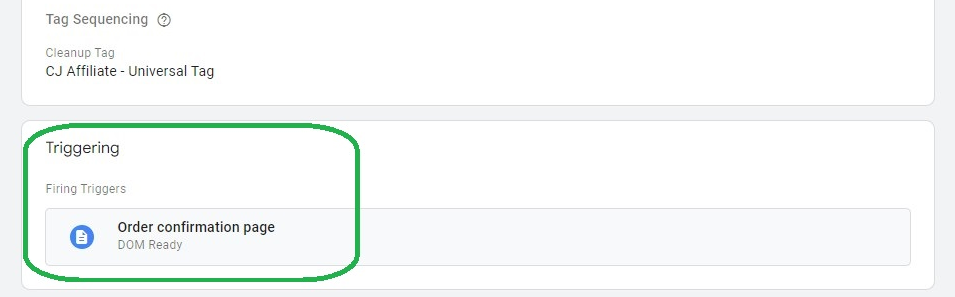
Under Triggering, select the trigger that fires on the confirmation page of your site.
10
Fire this tag on DOM Ready to ensure it triggers promptly and prevents tracking loss if a customer leaves the confirmation page before the tag fires.
11
Select Save.
Need help?
Submit a support ticket for account-specific support.
Updated 2 months ago
Did this page help you?