

Shopify Plugin Update
Overview
In 2023, Shopify launched a new checkout system i.e. Checkout Extensibility to replace the existing Checkout.Liquid. Shopify intends to turn off Checkout.Liquid in phases.
| Date | What is Deprecated? | Impact on CJ Tracking | Reason |
|---|---|---|---|
| Aug 13, 2024 | Checkout.Liquid for the Information, Shipping, and Payment pages | None | These pages are not used by the app |
| Aug 28, 2025 | Checkout.Liquid for the Thank You & Order Status pages, apps using script tags, and additional scripts | Will break | App tracks the order on the Thank You & Order Status pages |
Other Shopify Resources
What Should Clients Do?
CJ has released a new app version which is compatible with Checkout.Liquid and Checkout Extensibility.
- If you installed the plugin prior to June 2024, and are upgrading your store's Thank You and Order Status pages to Checkout Extensibility, it is critical to also update the CJ app to the latest version, beforehand. If you fail to do so, CJ tracking will break.
- Even if your store's Thank You and Order Status pages are currently using Checkout.Liquid, we strongly advise you to update the app at the earliest since Checkout.Liquid will be deprecated in Aug 2025 and the new version of the app can support both checkout systems.
- If you installed CJ's Shopify plugin after June 2024 and are using Shopify's Custom Pixel for CJ Tracking i.e. a custom pixel named 'cj-network-integration-pixel', then you are already using CJ's new app version. There are no additional steps needed when you upgrade your store to Checkout Extensibility from Checkout.Liquid.
Please follow the steps provided in the guide to update to the latest app version.
If you are installing the plugin for the first time, please refer to Shopify Plugin Installation.
Know More
Shopify's Custom Pixel
Custom Pixels are Javascript code snippets and run in a secured sandbox environment. It is used to track customer events and serves to replace Shopify's additional scripts (which will be deprecated by Shopify in Aug 2025). CJ's latest plugin version leverages this Shopify feature to track orders and unlock conversions & item-level tracking.
Learn More About Custom Pixels
Plugin Update Guide
Prerequisite
-
Please ensure that you have the permissions to View customer events and Manage and add custom pixels for the store.
If you are a Shopify Partner or Collaborator, the admin can grant this permission by following below steps:
- Navigate to Settings > Users and Permissions.
- Select the collaborator and scroll down to Store settings under Store permissions.
- Enable permissions for View customer events and Manage and add custom pixels.
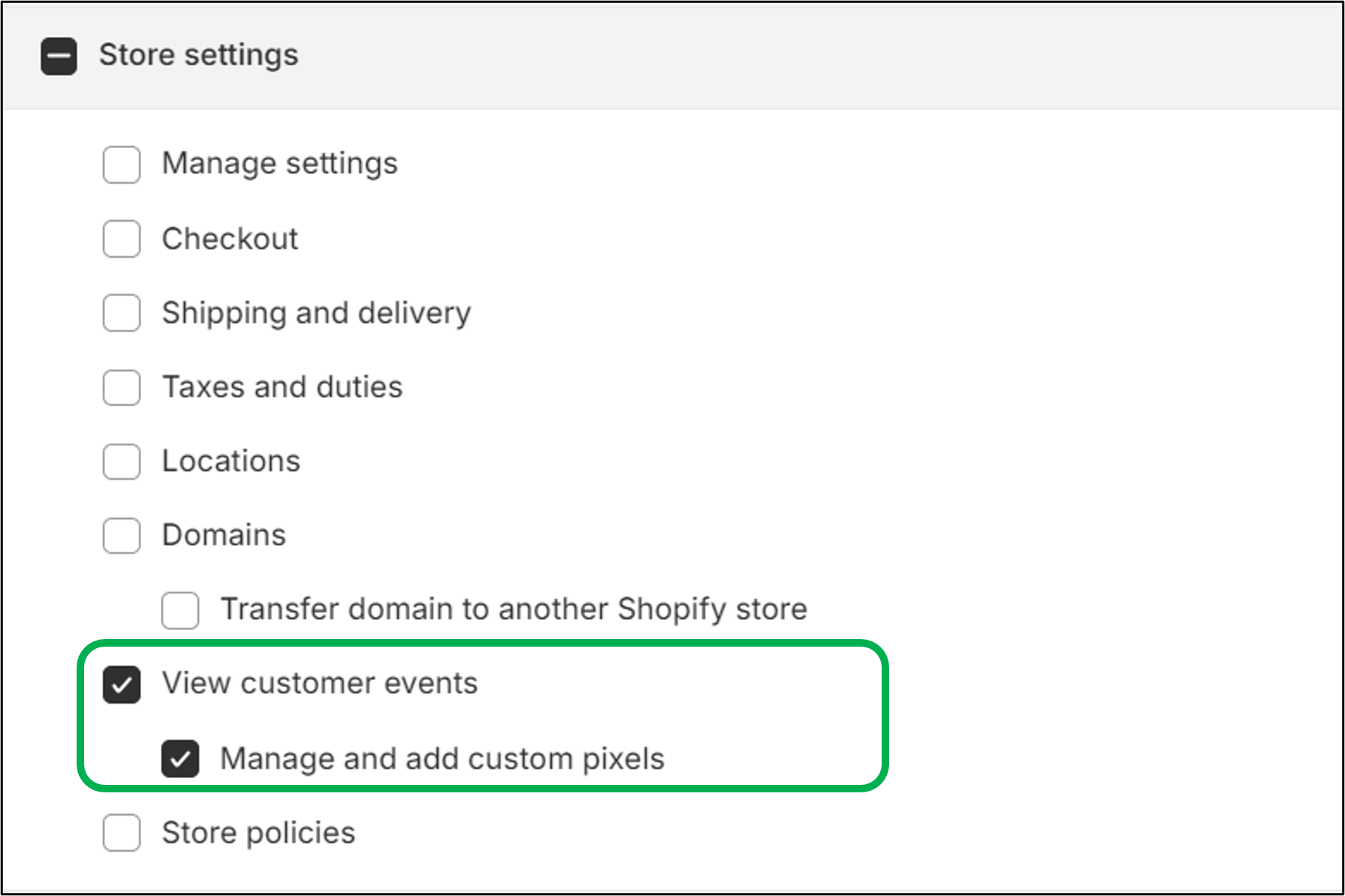
-
Update the browser settings, to allow the Shopify Admin page to send pop-ups and use redirects. We recommend using Google Chrome.
-
Ensure you have permission to install an app.
Steps
-
As Store Admin, select CJ Network Integration under Apps.
-
For the plugin UI to load, you must update the access permissions.
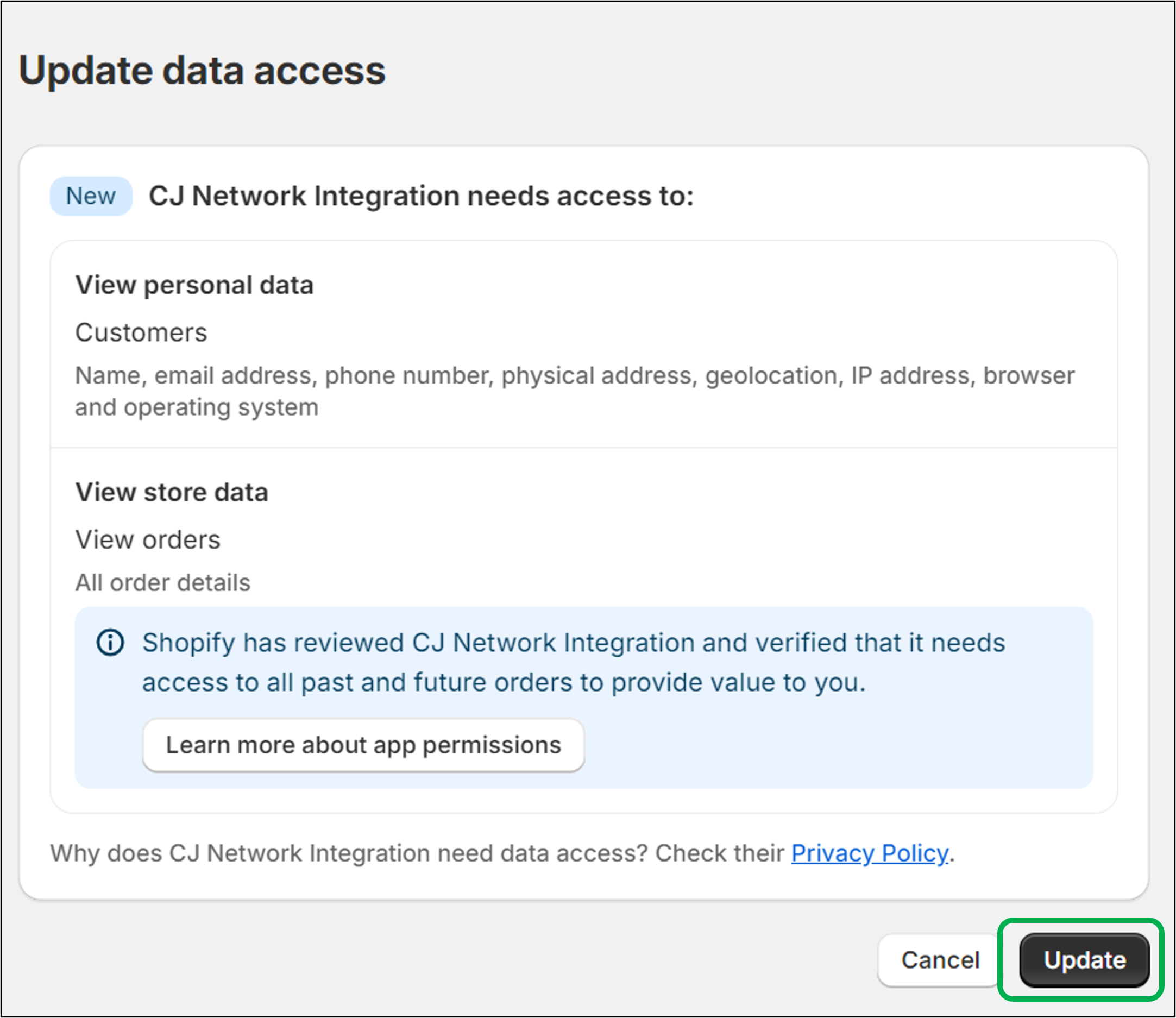
Please Note
- Neither the plugin nor CJ Network store Customer's personal data like address, phone number, etc. We are only leveraging Customer's order count to derive customer status (new vs. returning).
- If the plugin is not loading, please check for the pop-up blocker in the address/URL bar. Ensure that you are allowing pop-ups and redirects.
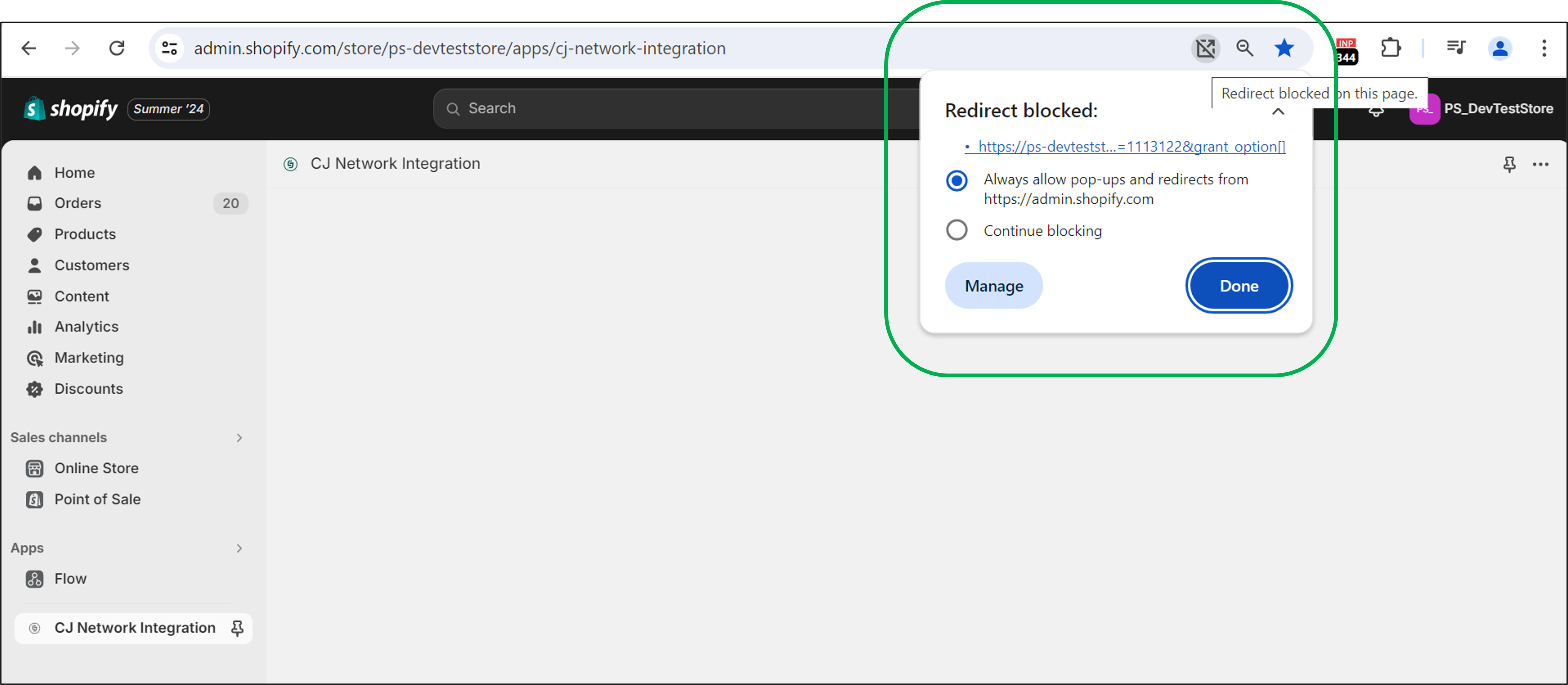
- Once the app UI loads, click Update within the banner on top.
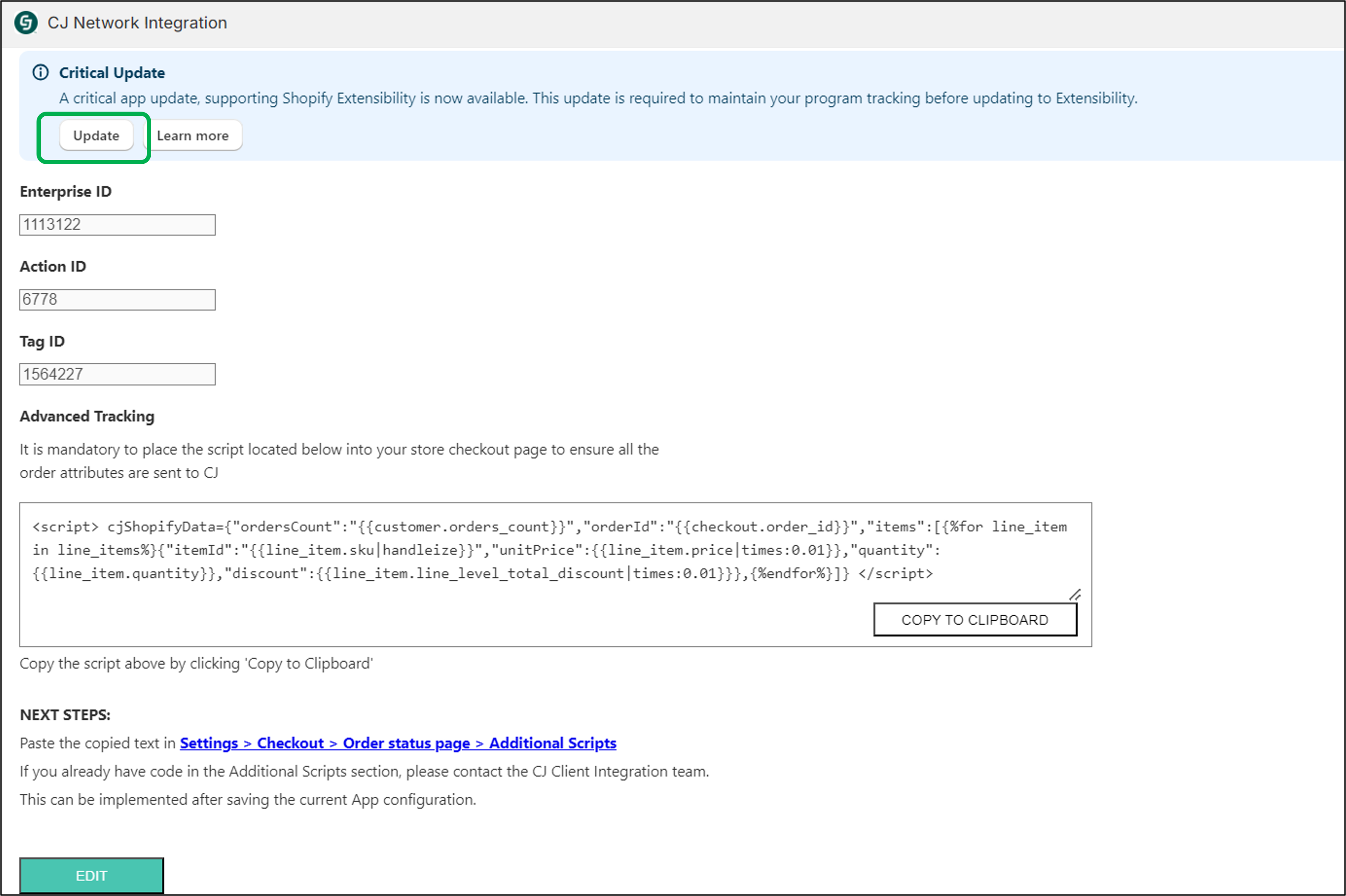
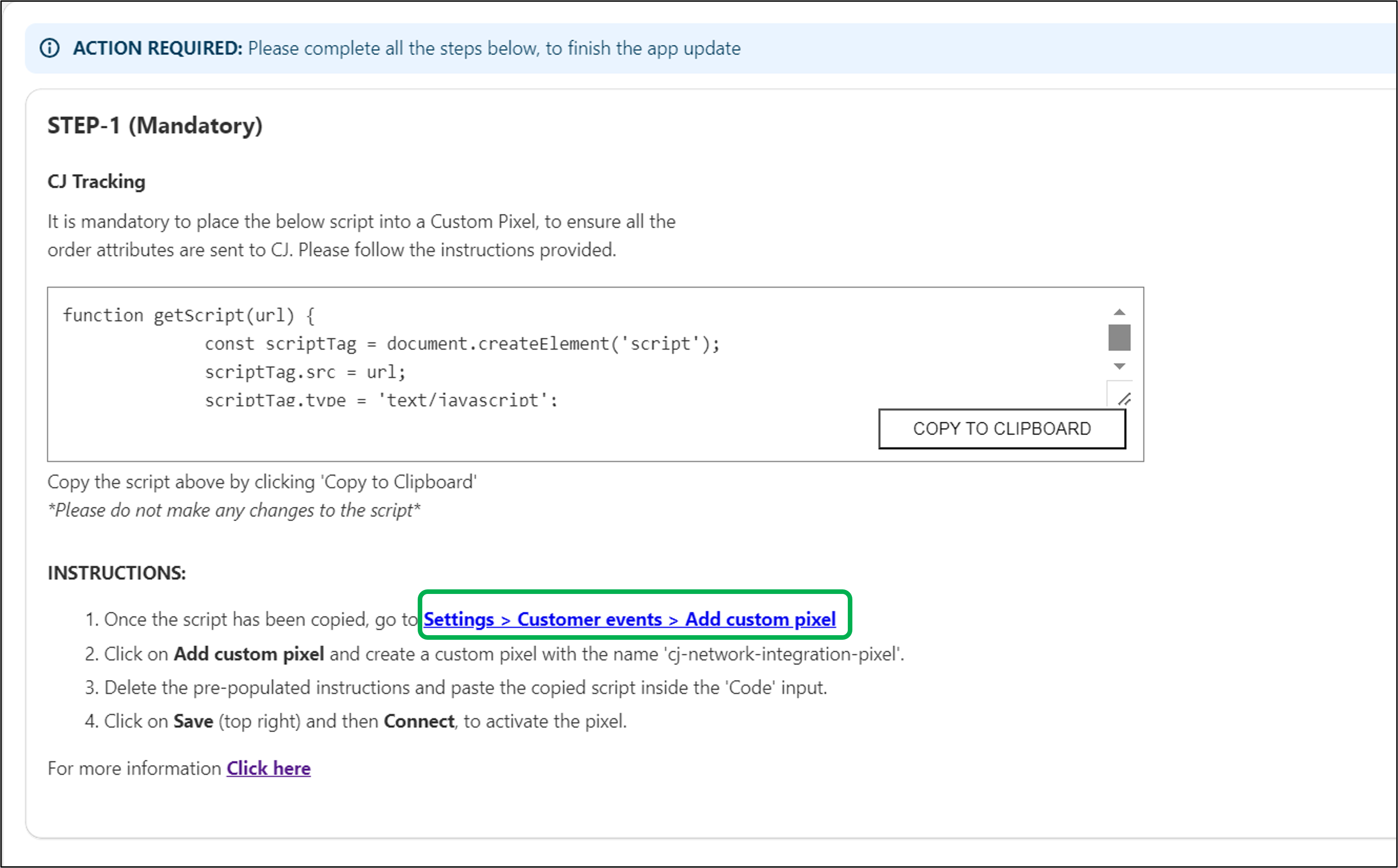
- On the next screen, instructions for further steps are provided, which need to be completed for the app update.
5a. Click Copy To Clipboard in the CJ Tracking code snippet.
Please NoteIn case customizations are needed, use the script provided by the CJ CIE team.
5b. In a new tab, navigate to Settings > Customer events > Add custom pixel or click on the link provided in the instructions of Step 1.
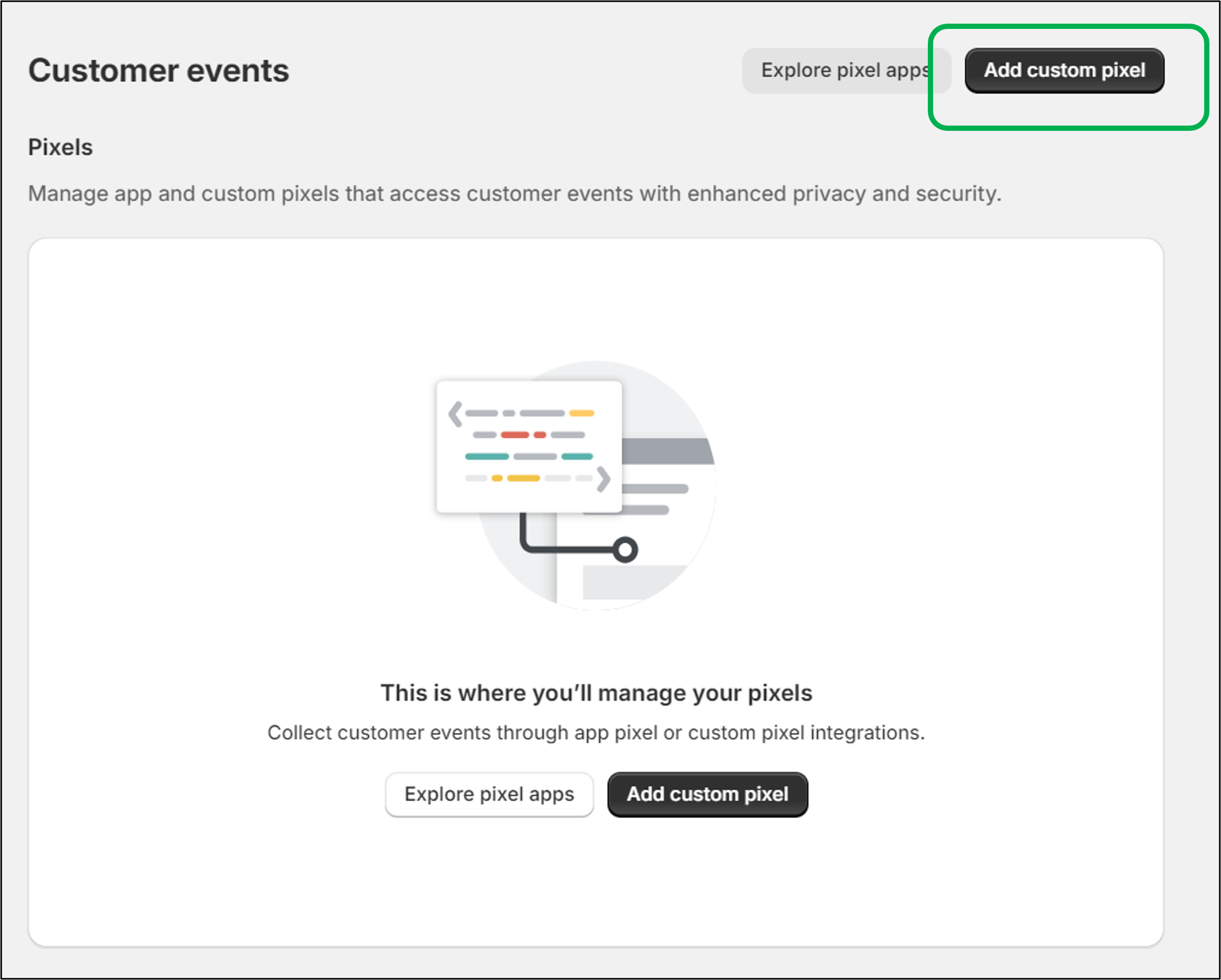
5c. Click Add custom pixel.
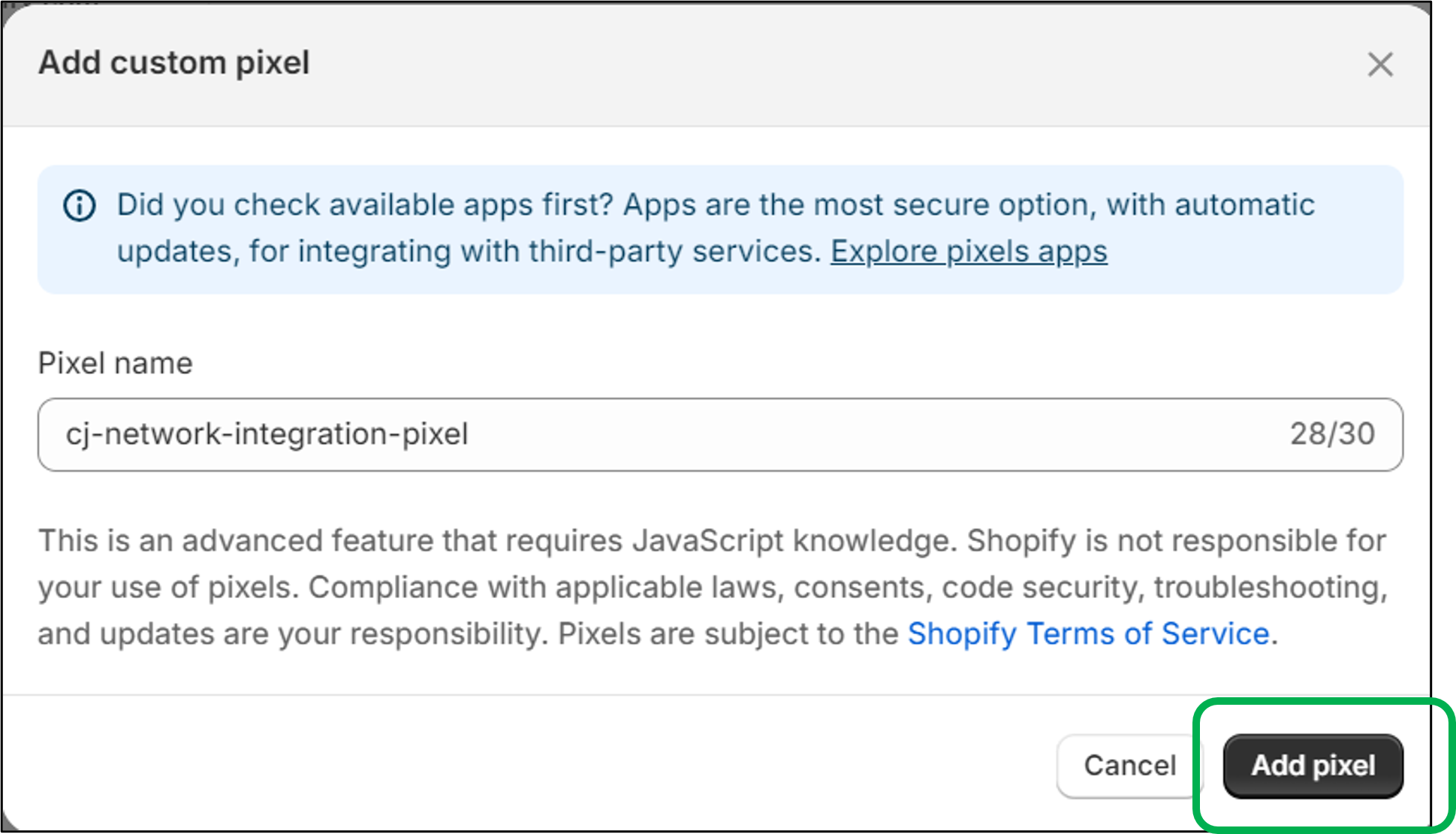
5d. Create pixel with the name cj-network-integration-pixel and click Add Pixel.
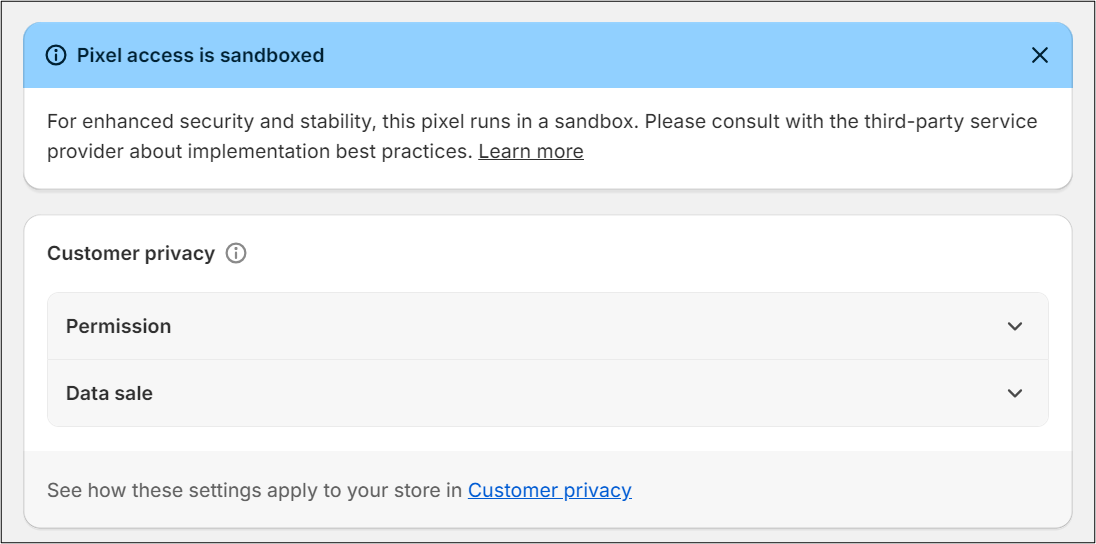
5e. On the next screen, for Customer privacy settings, Shopify will require you to make selections on whether permission is necessary, the type of data purpose for information collected, and whether the collected information constitutes a 'sale' of data.
Like Shopify, CJ cannot provide guidance to advertisers on how to adhere to applicable laws and relevant jurisdictions. CJ is transparent and open with the data we collect, use, and share as part of our services to advertisers, publishers, and consumers.
Some relevant information that pertains to our tracking technology:
- CJ uses only Pseudonymised Personal Data for the purpose of attributing a customer purchase to an originating click from a publisher partner.
- CJ does not use cookies, customer information, or our ad technology to customize ad content based on a customer's browsing history.
You can review the data CJ collects, the method for collection, the purpose of data collection, and other relevant information in our Services Privacy Policies: Global privacy policy and Europe and UK-specific privacy policy.
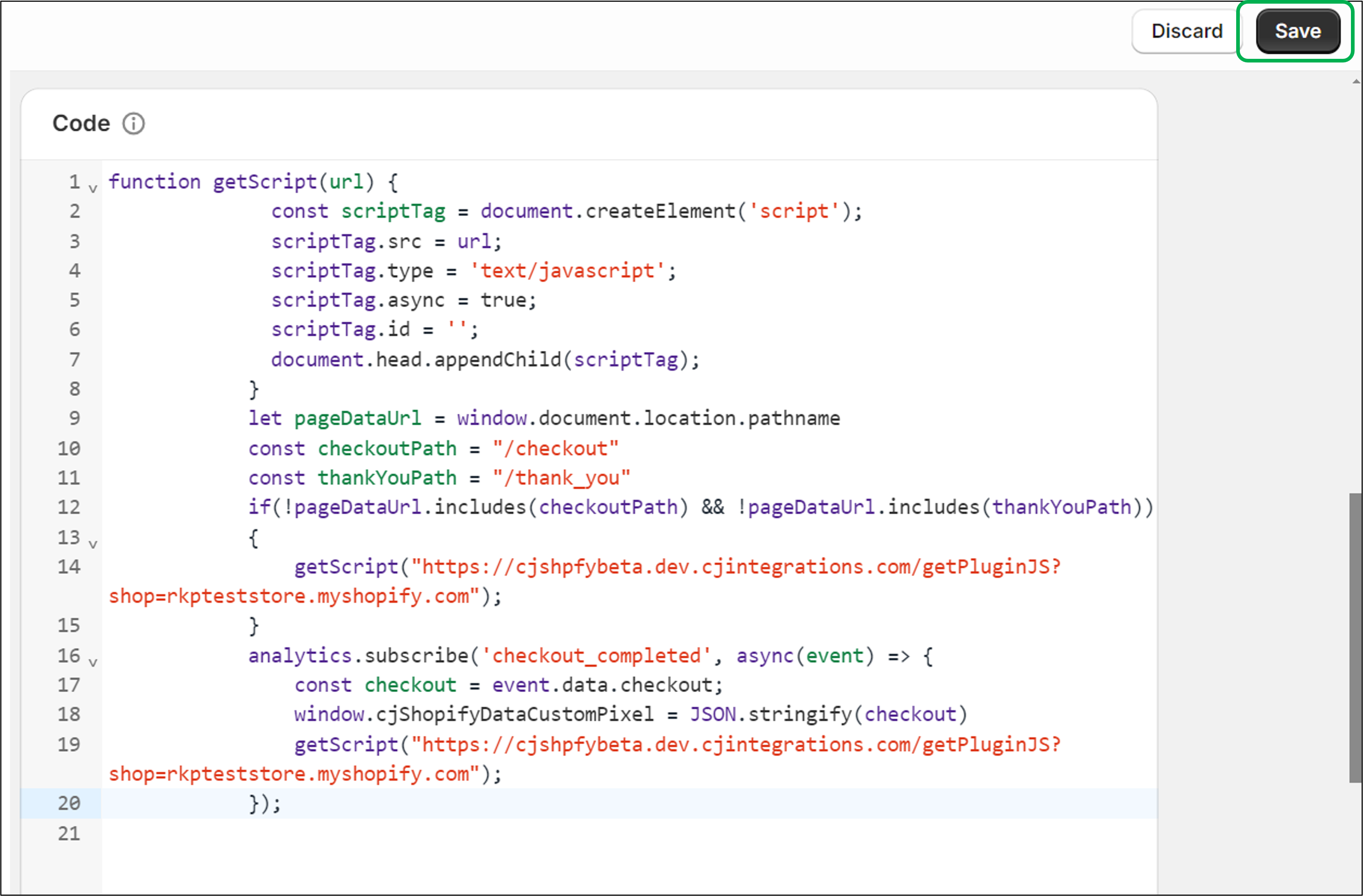
5f. Delete the prepopulated instructions in the Code input, before pasting the custom script copied in Step 5a.
5g. Click Save in the top right.
5h. Once saved, click Connect to initialize the Custom Pixel.
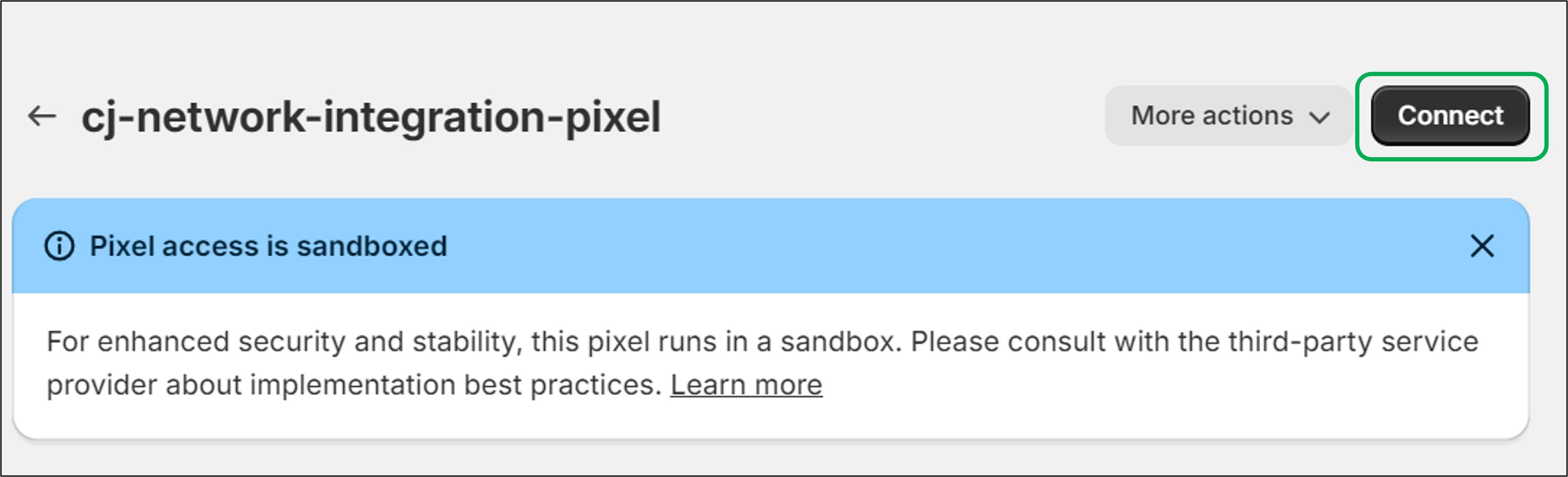
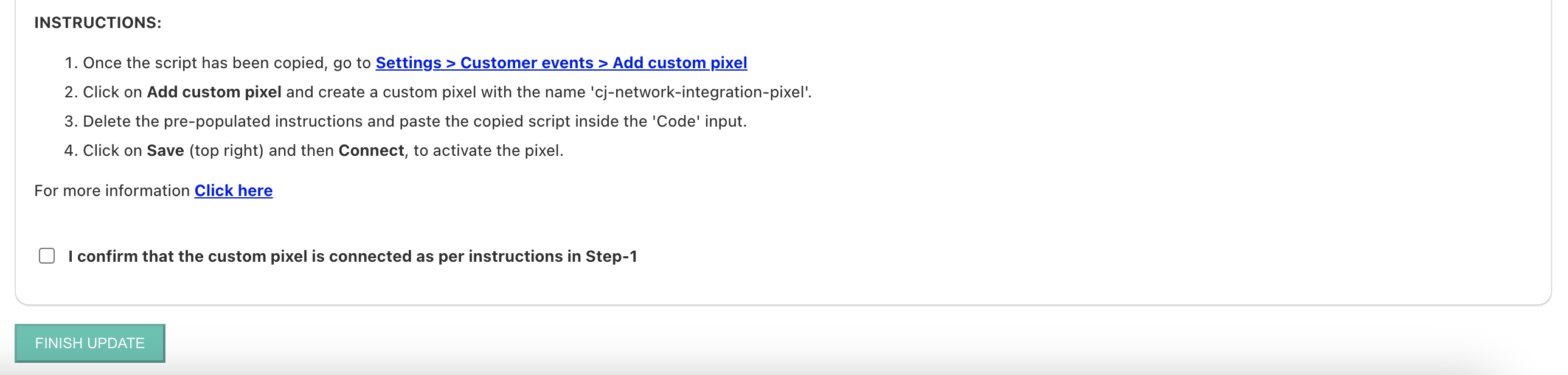
- The custom pixel i.e.
cj-network-integration-pixelis critical for CJ Tracking to continue. Please provide the confirmation only if this custom pixel is connected. Once you confirm, proceed by clicking Finish Update.
- (a) On successful update of the app, the below page will load.
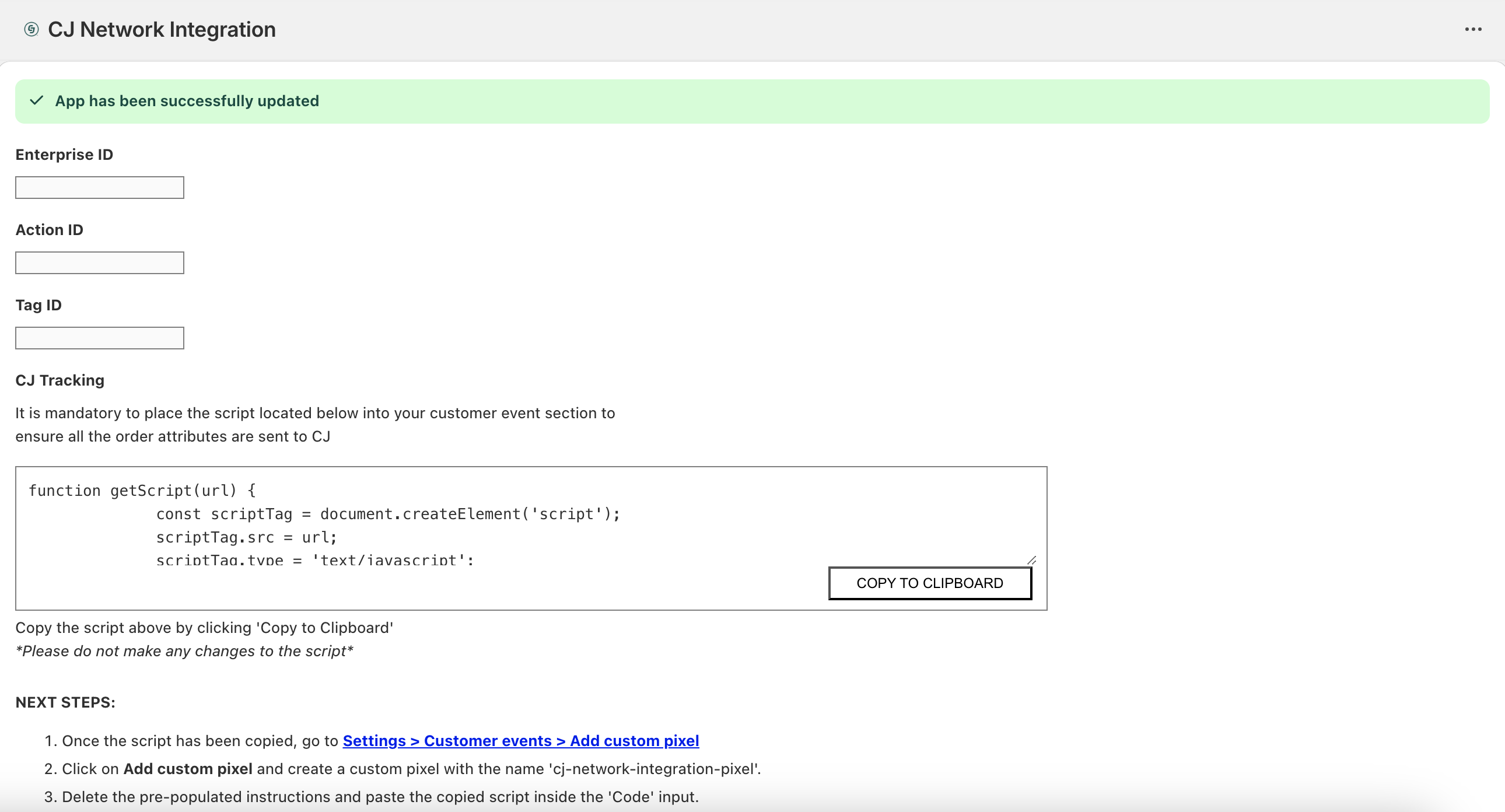
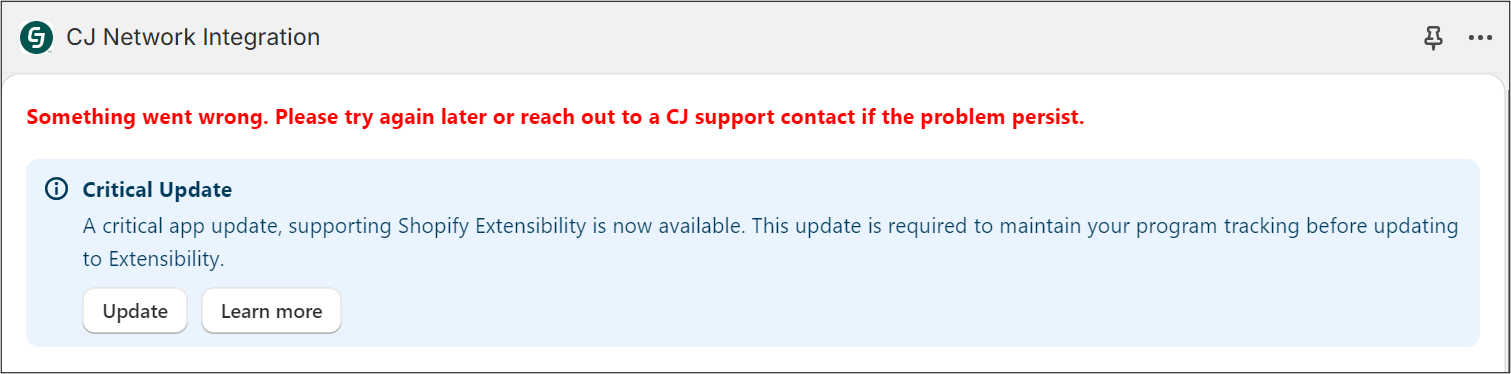
(b) In case of any issues while updating the app, an error message will be displayed. In this case, please try updating the app again else reach out to the CJ team.
- Please place test orders to confirm that the app update is successful and CJ tracking works as expected.
Need help?
Submit a support ticket for account-specific support.
Updated 4 months ago